How to Make a Round Logo in Canva: Step-by-Step Guide
Learn how to make a round logo in Canva with tools, step-by-step instructions, design tips, and best exports for JPG, PNG, and PDF.
Understanding Round Logos
A round logo is a brand mark built within a circular shape - often with a centered icon, initials, or wordmark - and designed to work clearly at both small and large sizes. You’ll commonly see round logos on profile avatars, sports and team identities, product seals, restaurant branding, and website favicons because circles read well when scaled down.
In practice, a round logo can be made as a simple single circle, a ring (circle outline with spacing), or a stacked badge with curved text. The “round” part matters less than the overall composition staying balanced around a center point, which helps the logo feel cohesive even when cropped into a circle.
When you learn how to design a round logo, you’re really learning layout: creating a central focal point, managing negative space, and ensuring the design still works when the image is tiny or partially cropped.
Why Choose a Round Logo?
Round logos are popular because they signal completeness and continuity. From a branding perspective, they can create a strong, memorable identity - especially when the mark is used repeatedly as an avatar or seal-like badge.
They’re also versatile. A well-designed round logo can appear on packaging, social media, signage, and app icons without looking “off” because the shape naturally guides attention toward the center. This is a practical advantage for brand identity: your mark stays recognizable across different contexts and aspect ratios.
Finally, round logos often support consistent visual behavior. The circular boundary makes it easier to enforce logo design principles like symmetry, spacing discipline, and typographic hierarchy - key factors for readability and recognition.
Tools for Designing Round Logos
You can create round logos with many types of graphic design software, from full-featured vector editors to browser-based tools. The best choice depends on whether you want to output vector graphics (ideal for quality at any size) or you’re producing a quick, practical version for web and social.
Popular tool categories include vector graphic software (best for long-term brand assets), design platforms with templates and easy controls, and icon/illustration tools. Canva is often the most accessible option because it combines shape controls, color palettes, and typography tools in one interface.
If your goal is professional logo design principles with scalable output, you’ll also want to think about exporting and potentially converting assets into vector form later. But for getting to a solid first draft, you can absolutely create round logo in Canva and then refine.
- Canva: beginner-friendly shapes, color palettes, and text placement; good for fast logo iterations.
- Vector graphic tools: best for clean paths, scalable logos, and long-term brand identity consistency.
- Icon and illustration tools: useful for building circular marks with consistent visual style.
- Basic image editors: helpful for quick touch-ups, but usually not ideal for final logo quality.
Step-by-Step Guide to Create a Round Logo in Canva
Here’s a straightforward process for how to make a round logo in canva - from a clean circle base to a final export-ready design. The steps focus on the practical decisions that affect readability: shape selection, color theory, and typography in logos.
Before you start, decide what your round logo needs to communicate: initials, a symbol, a brand name, or a combination. That choice determines how much space you leave for text and how bold the icon should be.
1) Start a new design and set up your canvas
Open Canva and create a new design. Choose a size suited to your output goal (for example, a square format for social and avatar use). A square canvas makes it easier to keep the logo centered inside a circle.
If you’re unsure, start with a large square size so details don’t feel cramped. You can always resize later without losing layout consistency.
2) Add the circular shape base
In Canva, go to the Elements or Shapes area and add a circle or ring. Select a fill color for the background (or use a ring if you want a lighter, more minimal logo). The circle should act like a framing device for the content, not just a decorative element.
Use alignment tools to center everything. Round logos look “professional” when the circle boundary and your internal elements share the same visual center.
3) Choose a color scheme that supports readability
Pick colors using color theory and contrast. For logos, high contrast is often the difference between “looks great on-screen” and “looks unreadable when scaled down.” A common approach is one primary color plus one neutral (white/black) to create clear text separation.
Test your choices by zooming out - Canva lets you quickly judge whether the icon and text stay distinct. If the design blends together, adjust contrast before you add complex details.
4) Place your icon or create the central mark
Add an icon, monogram, or simple graphic element in the center. Keep it bold: circular logos usually work best with clean shapes and minimal internal detail so the mark survives small sizes.
If you’re using an icon, match its line weight and style to your typography. Consistency here strengthens brand identity because the logo feels intentional rather than assembled from mismatched parts.
5) Add typography with clear hierarchy
For text, decide between a centered wordmark (best for simplicity) or curved text around the ring (works if you have short words). If you want a classic badge look, you can put a short brand name near the top curve and a descriptor on the bottom.
When learning how to make a round logo, prioritize legibility: use fewer fonts, bigger text sizes, and avoid overly thin lettering. Typography in logos should remain readable even when the logo is displayed as a small icon.
6) Use spacing and alignment like a designer
Adjust spacing so every element “breathes” within the circle. If the icon touches the ring or the text nearly collides with the boundary, it will feel cramped. As a rule, aim for a consistent margin between the circular edge and the text/icon.
Also check symmetry. Shape psychology often ties circles to balance and stability, so uneven spacing can reduce perceived quality.
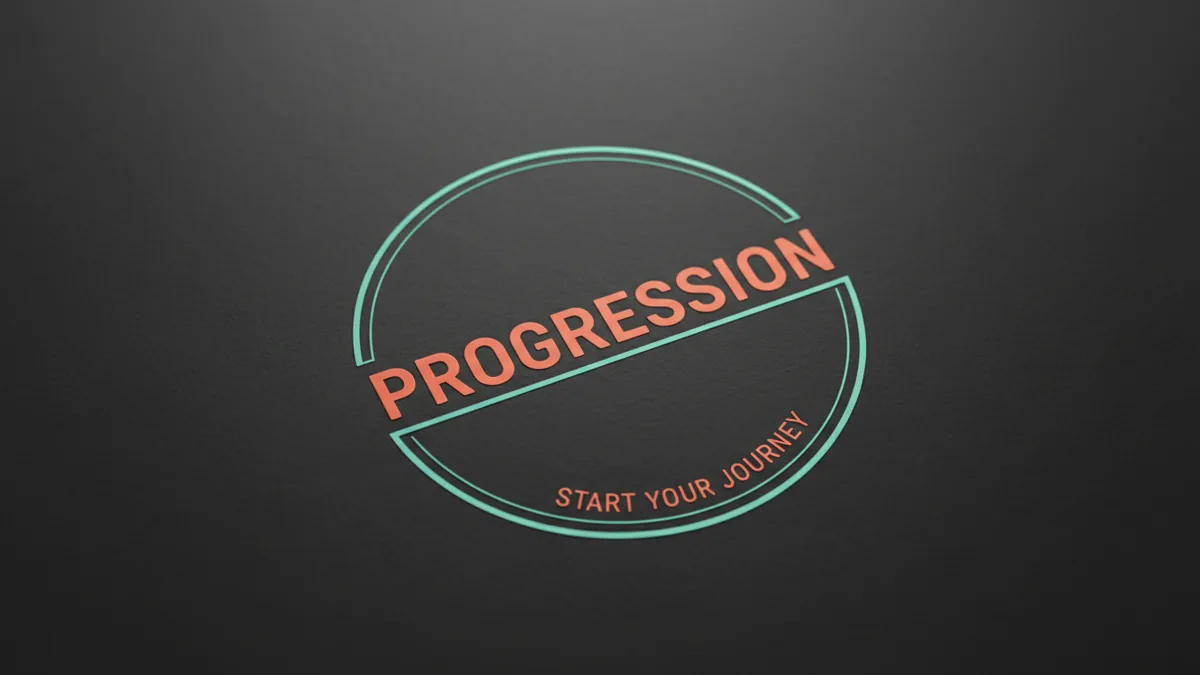
7) Finalize with polish: effects and consistency
Keep effects minimal. A subtle shadow may help an icon pop, but heavy effects can reduce clarity when exported or viewed at small sizes. If your design uses gradients or complex textures, simplify - flat colors typically translate better for logo use.
Re-check contrast and alignment one last time. If you’re preparing multiple versions, keep one “master” layout and duplicate it rather than rebuilding from scratch.
Tips for Effective Round Logo Design
Round logos succeed when they follow practical logo design principles: simplicity, strong hierarchy, and consistency across elements. A circle is a strict container - so your design must be disciplined enough to look good even without extra decoration.
If you’re figuring out how to design a round logo that looks intentional, start with fewer elements than you think you need. Then increase detail only if it improves recognizability at a glance.
- Keep it simple: use 1–2 core colors and a single central icon or monogram.
- Prioritize high contrast: test readability at small sizes and avoid low-contrast combinations.
- Use consistent typography: limit to one or two font styles and ensure weight matches the icon.
- Maintain balance: align everything around the center and avoid crowding the ring edge.
- Prefer clean shapes: bold, simple geometry tends to reproduce better than fine details.
Also watch for “circular cropping surprises.” Many platforms display logos inside circular frames, even if your original design is round. A balanced center and safe margins reduce the risk of key details being cut off or visually crowded.
If you’re designing a logo for a brand identity system, consider how the round mark will sit alongside other versions. For example, a full-width wordmark can pair with the round version - keeping your brand consistent across different layouts.
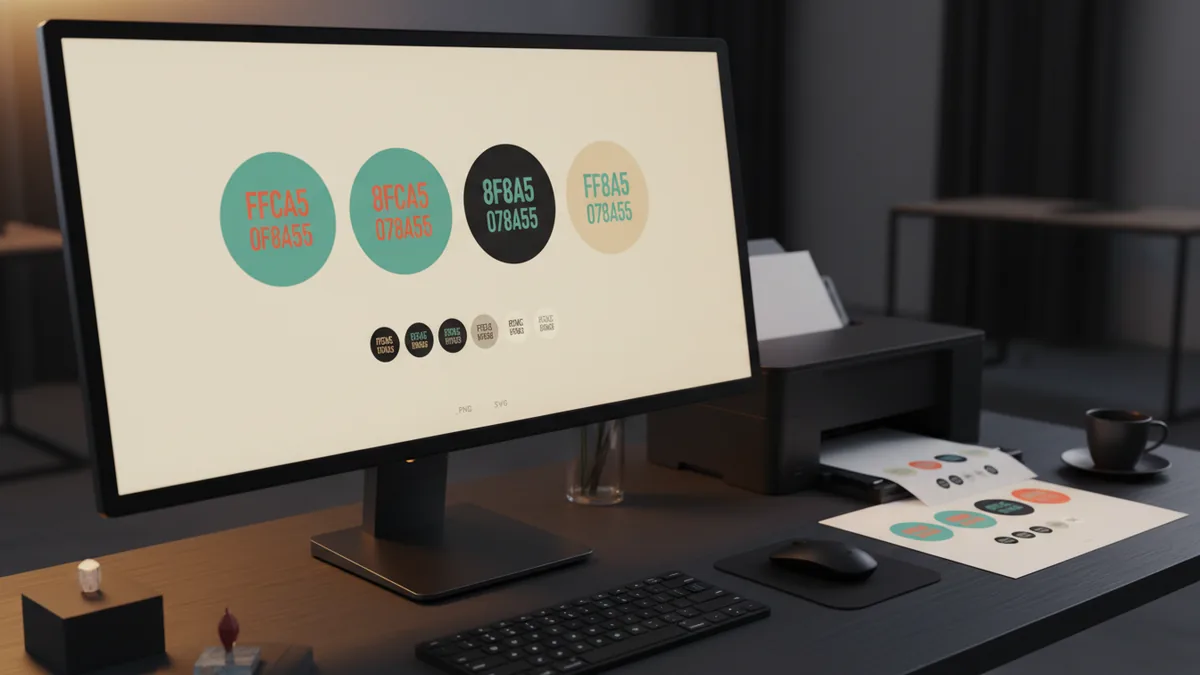
Saving and Exporting Your Round Logo
Exporting is where many creators lose quality - especially if they only save a screen-based file format. To ensure your logo works across websites, print, and social profiles, export in multiple formats tailored to different use cases.
JPG is useful for photos and some web contexts, but it does introduce compression artifacts. PNG supports transparency for clear overlays on different backgrounds, and PDF is common for sharing and certain printing workflows.
Even if you create round logo in canva, you can still plan your exports carefully. Use a consistent naming convention so it’s clear which background each asset is intended for.
| Format | Best use | Notes |
|---|---|---|
| PNG | Transparent web overlays and profile icons | Best when you need the logo to sit on different colors |
| JPG | Simple web usage with a fixed background | Use when transparency isn’t needed |
| Sharing and print-prep workflows | Helps when you need a crisp file for design review |
- Export a PNG with a transparent background for flexible placement.
- Export a PNG or JPG for a solid background version (e.g., white or dark).
- Export a PDF for review and documentation, especially if you need to provide files to others.
- After exporting, open each file and check at small sizes to confirm text stays readable.
If you plan to use the logo professionally over time, consider preserving the original editable layout as your “source of truth.” That way, when you need a new color variant or a tighter version for an app icon, you can iterate without starting over.
How to do it
- Create a square canvas for consistent centering
Start a new Canva design in a square format so the circle and all elements stay proportional. This makes later scaling and exports more predictable.
- Add and center a circle or ring shape
Insert a circle or ring from shapes/elements, then align it to the canvas center. Treat this boundary as the container for everything else.
- Build contrast with a simple color scheme
Choose a primary color plus a neutral (white/black) and check readability. Adjust colors until text and the central icon remain clear at a glance.
- Place the central icon and typography
Add an emblem or monogram in the middle and then add text with a clear hierarchy. Keep spacing consistent so nothing crowds the circle edge.
- Polish alignment and check legibility
Review symmetry, margins, and font weight to ensure the logo looks balanced. Zoom out to confirm it still works as a small avatar.
- Export in PNG, JPG, and PDF for different uses
Export a transparent PNG plus a solid-background version as needed. Add PDF for sharing and review, then re-open files to verify quality.
Frequently asked
- What is a round logo and where is it used?
- A round logo is a brand mark designed to fit inside a circular layout. It’s commonly used for avatars, social profiles, badges, packaging seals, and small app icons.
- Is it easy to create a round logo in Canva?
- Yes. Canva provides circle and ring shapes, simple alignment tools, and flexible text options, so you can go from concept to a usable draft quickly.
- How do I make a round logo in Canva that stays readable at small sizes?
- Use a bold central mark, limit your color palette, and keep typography large and high-contrast. After designing, zoom out to confirm details don’t blur together.
- What color scheme should I use for a round logo?
- Choose colors with strong contrast, typically pairing one brand color with white or black. This improves legibility and makes the logo work across light and dark backgrounds.
- Should I export a round logo as PNG, JPG, or PDF?
- Export at least a transparent PNG for flexible placement. Add JPG for fixed-background web use and PDF for sharing or print-related workflows.
- Can round logos be part of a full brand identity system?
- Yes. Many brands use a round logo version alongside other formats like a wordmark, keeping branding consistent across different spaces and sizes.